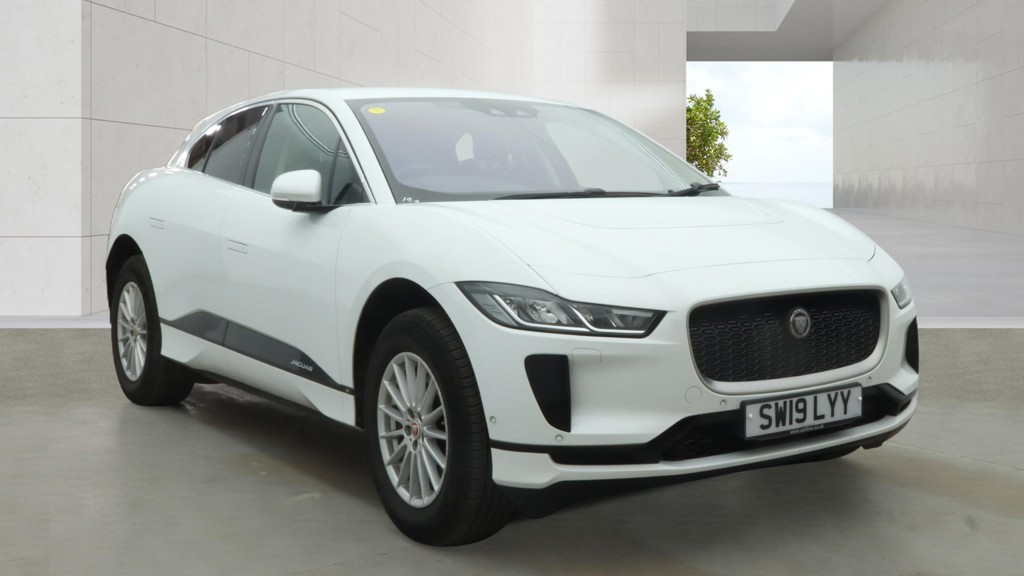
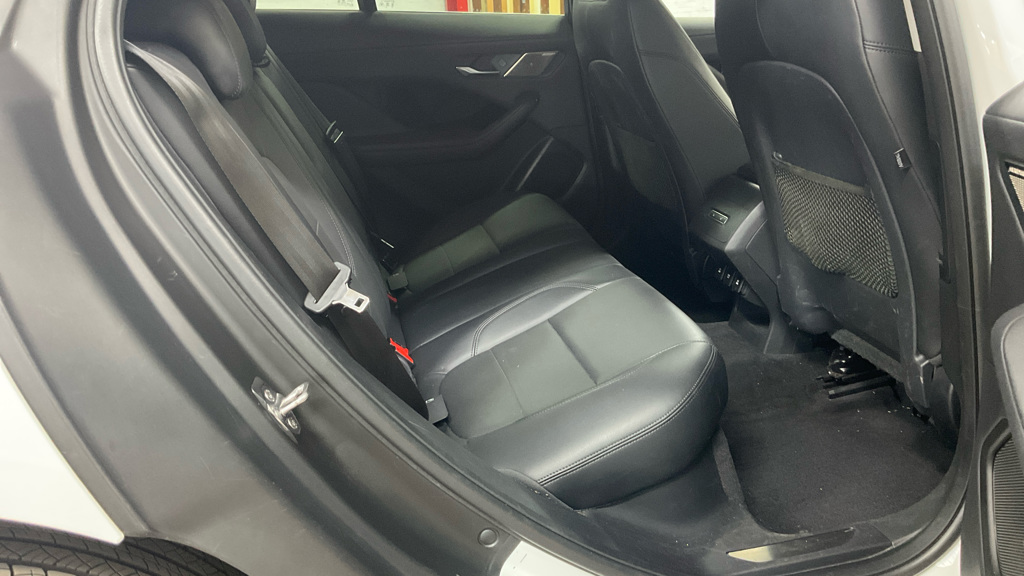
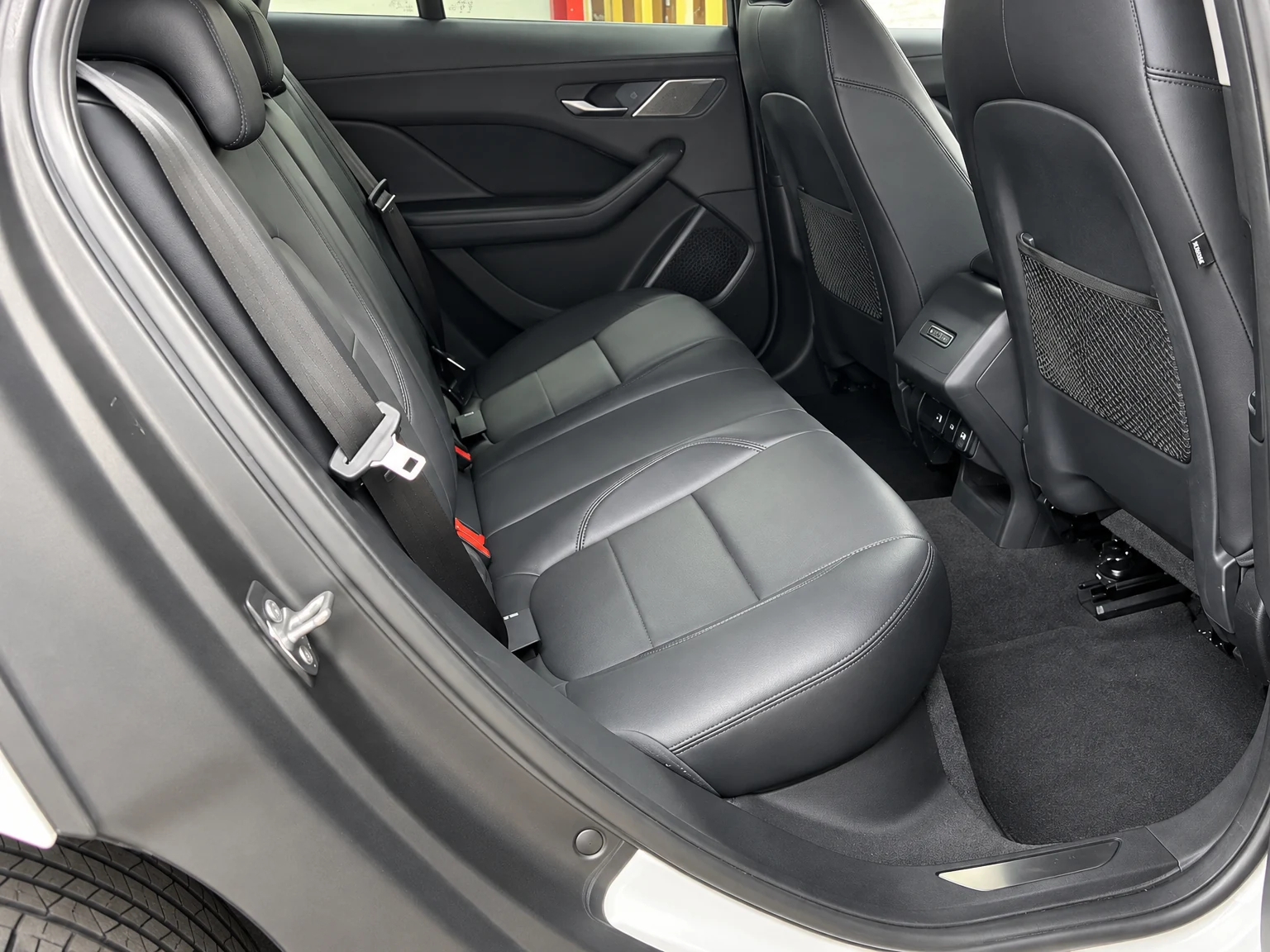
Exterior, interior and detail photos
Upload a mixed batch with Auto detection or choose each photo’s type yourself. Add instructions to an individual image when it needs a different treatment.
VEHICLE PHOTOGRAPHY · FOR THE MOTOR TRADE
Vehicle photo editing for dealerships. Prepare exterior and interior photos, use your dealership background and give your listings a consistent look.
Sign in with your existing Dealer VHC account. Photo Studio access must be enabled for your business.
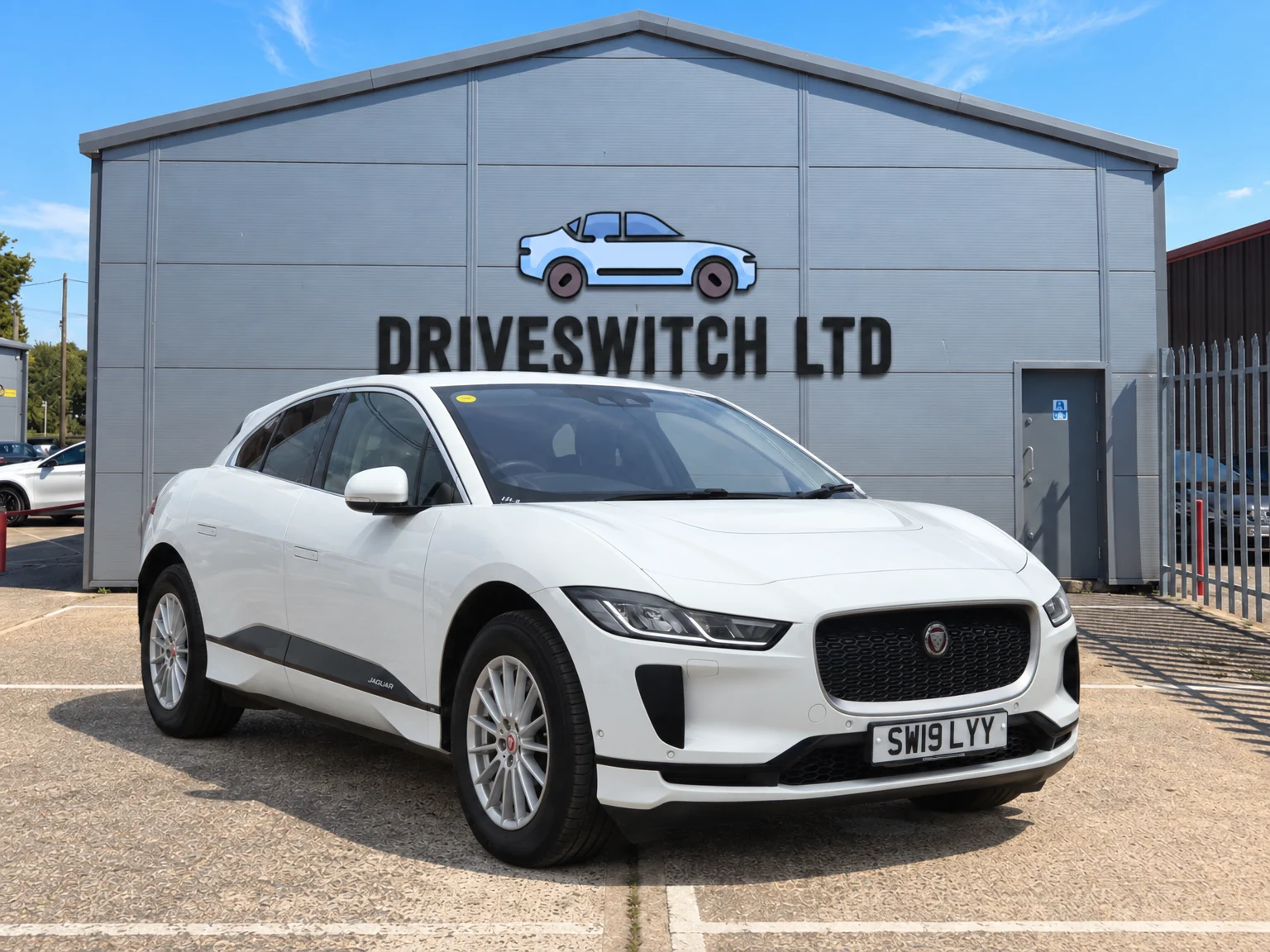
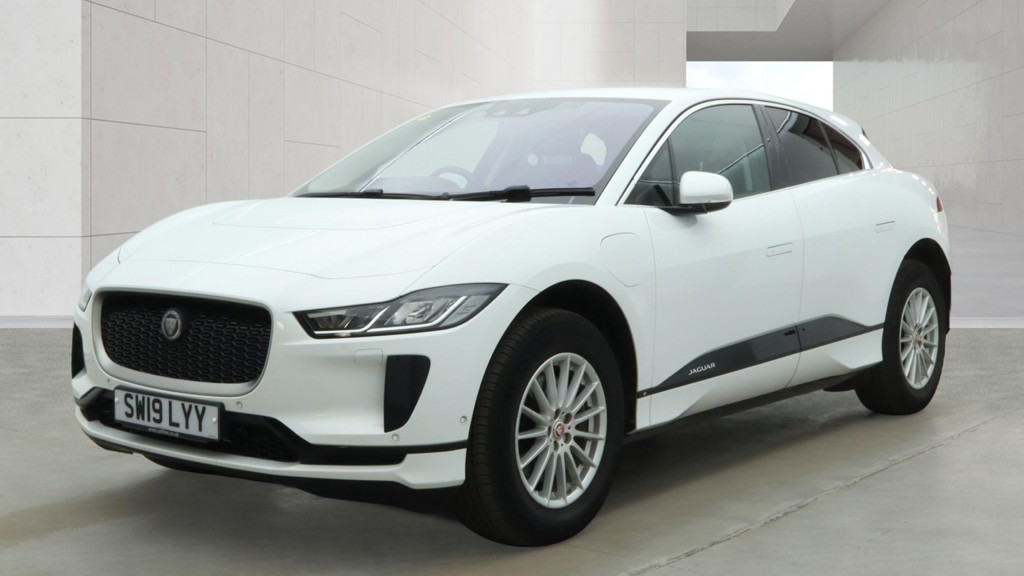
SW19 LYY · JAGUAR I-PACE
Original uploads beside their saved Photo Studio edits. These exterior and interior examples come from the same vehicle.
STEP BY STEP
Follow SW19 LYY from an original vehicle photo to a saved edit, with a dealership background example and real app screenshots.
Before you start: sign in, choose Photo Studio and open Edit photos. If paid editing is enabled, check your wallet balance and top up if needed.
UPLOAD
Select Add photos or drag in your images. Include exterior angles, interior photos and close-ups, then enter the vehicle’s Registration to keep the finished set together.
CHOOSE YOUR LOOK
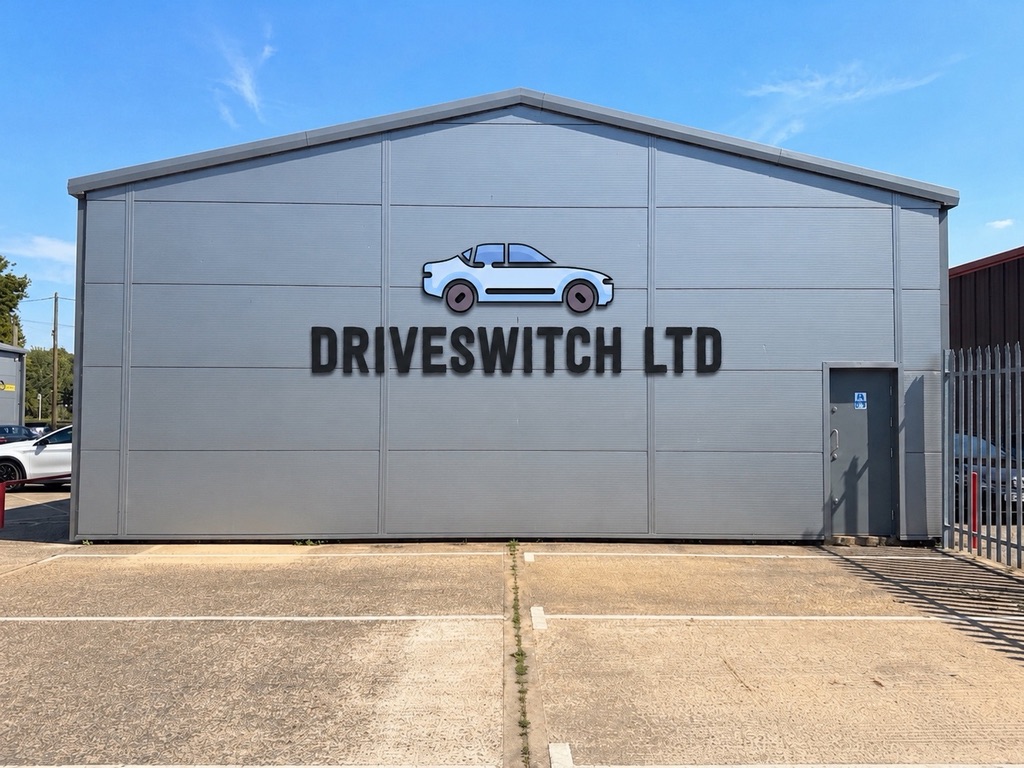
For exterior photos, upload your dealership background or choose one from your saved library. Select Natural placement for blending with the scene or Exact background to keep the background pixels unchanged.
EDIT & REVIEW
Start with Edit photo for one image or the batch edit button for the set. Up to four photos can be processed together. Completed images appear as Edited and saved.
If an image needs attention, review its message and photo type before retrying. A failed edit releases its reserved funds.

DOWNLOAD
Select Download on a finished image, or use Download completed ZIP to save the completed batch together. Find previous results in Saved photos, organised by registration.

Ready to upload to your dealership website or vehicle marketplace.
Screenshots are from Photo Studio in use; the current interface may look different. Always review edited photos before publishing.
YOUR COMPLETE PHOTO WORKSPACE
Edit, organise and export in one place. Review your finished photos before publishing a listing.
Upload a mixed batch with Auto detection or choose each photo’s type yourself. Add instructions to an individual image when it needs a different treatment.
Upload, name and reuse dealership backgrounds. Natural placement blends the vehicle with the scene; exact background mode keeps the background pixels unchanged.
Brighten vehicle lighting or lift the cabin lighting. Interior and detail photos need no exterior background, and you can optionally switch off an infotainment screen in the image.
Process up to four photos at a time, resume saved uploads and review failed items before retrying. Completed photos can be refined into a new saved version.
Find each vehicle’s photos in its registration folder. Sort photos by filename or date, choose images to download and remove photos or whole folders when no longer needed.
Download a single image or a batch for your listings. Downloads do not spend edit funds. Saved photos are kept for 120 days, so download the images you want to keep.
PHOTO STUDIO PAYMENTS & INVOICING
When paid editing is enabled, your business tops up its Photo Studio wallet through Stripe. See your available balance, funds reserved for work in progress and how many edits your balance covers.
The current edit price and minimum top-up are shown before you pay. Photo Studio wallet funds are separate from your Dealer VHC subscription.
Use the Invoices tab to browse current and older purchases, view invoice numbers and totals, and download paid invoice PDFs. Totals show any VAT charged at checkout.
Open your wallet and invoicesUse your existing Dealer VHC account. After signing in, choose Photo Studio. Switch product returns to Dealer VHC without another sign-in.
Yes. Upload your background and save it in your business background library for future exterior edits. Interior and detail photos can be edited without an exterior background.
When paid editing is enabled, choose a whole-pound top-up at or above the current minimum and pay through Stripe. Once payment is confirmed, the funds are added to your business wallet. Open Invoices to view the paid invoice and download its PDF when ready.
An edit reserves its price when it starts. If it fails, the reserved amount is released. If an edit has already completed, recovering its saved result does not charge for the same work again. A new refinement is a new edit.
Saved photos are retained for 120 days. Download any images you want to keep longer. Wallet funds have no expiry and remain available when photos are deleted.
No. Saved photos, invoices and editing tools require sign-in and the appropriate business access. This public page describes the product and does not display your business records.